Start with the closest symptom
If you are not sure where to look first, start with the closest help page. In many cases, checking a few simple points in order is the fastest way to resolve the issue.
- Reload the page
- Check whether the screen requires you to be signed in
- Open the closest guide for what you are trying to do
- Contact Support only if it still is not resolved
If you are unsure which page fits best, these are the closest starting points:
- Sign-in or order-history questions: My Page and purchase history
- Editor or layout questions: Editing your design
- Order or payment questions: Ordering and payment
- Short general questions: Frequently asked questions
If email does not arrive
For confirmation emails or password reset emails, check these points in order:
- your spam or promotions folders
- whether
wahharu.comis allowed by your mailbox settings - whether waiting a few minutes and sending one resend solves it
It is usually better to check mail conditions once before sending multiple resends. If the missing message is an order confirmation email, also review the orders or purchase history section below.
If the issue is specifically about confirmation or reset mail, also review the FAQ entry for missing email.
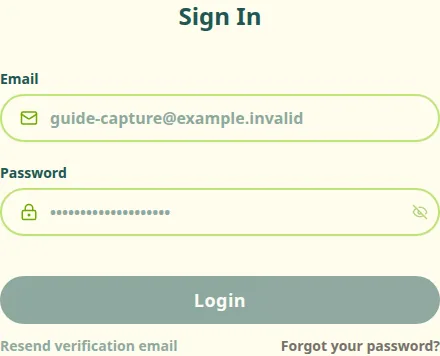
Auth screen with the confirmation-email message and resend link
If you cannot sign in
Review the sign-in flow in this order.
- Check the email address and password again
- Use "Forgot password" if a reset is needed
- Complete the verification code step as well when 2FA is enabled
After sign-in completes, you can continue from the page you were already using.
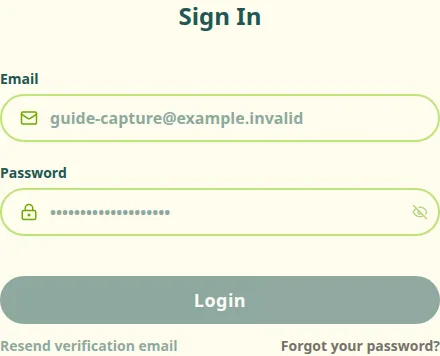
Auth screen with sign-in, account creation, and password reset entry points
If the editor is not working the way you expect
When the editor feels stuck or incomplete, check these points first.
- A frame has been selected
- Placement changes are being made in Edit
- The finished look is being checked in Final look
If you cannot place a stamp, the most common cause is that the frame has not been selected yet. After choosing a frame, select a stamp and click or tap the canvas.
The "Place photo" action is only for checking how the design looks. The photo you place is not saved and is not included in your order. If you want to change what will actually be saved, go back to Edit and adjust the stamps or placement there.
The basic editing flow is covered in Editing your design.
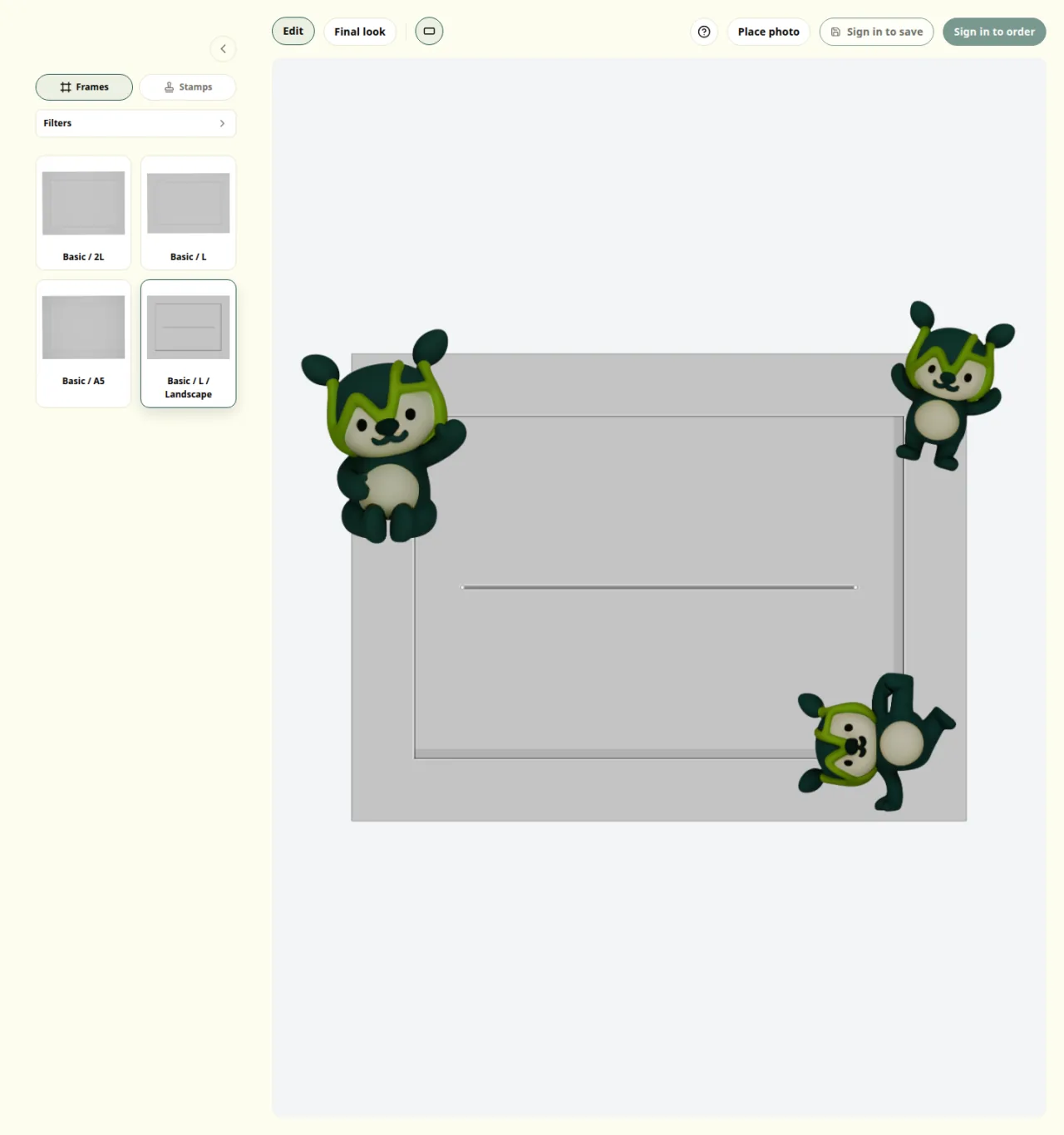
Editor view with the frame, Edit tab, and Final look tab visible
If the issue is with orders or purchase history
The right place to look depends on whether the issue is before or after payment.
Before payment
- Review the cart contents
- Check quantity, shipping, total, and any warning messages
- Return to the editor if the design itself needs to change
After payment
- Recheck the payment-complete screen or confirmation email
- Open My Page and review purchase history
- Use the Stripe portal for receipts or payment-method management
- If the order does not appear, recheck payment completion and the signed-in account
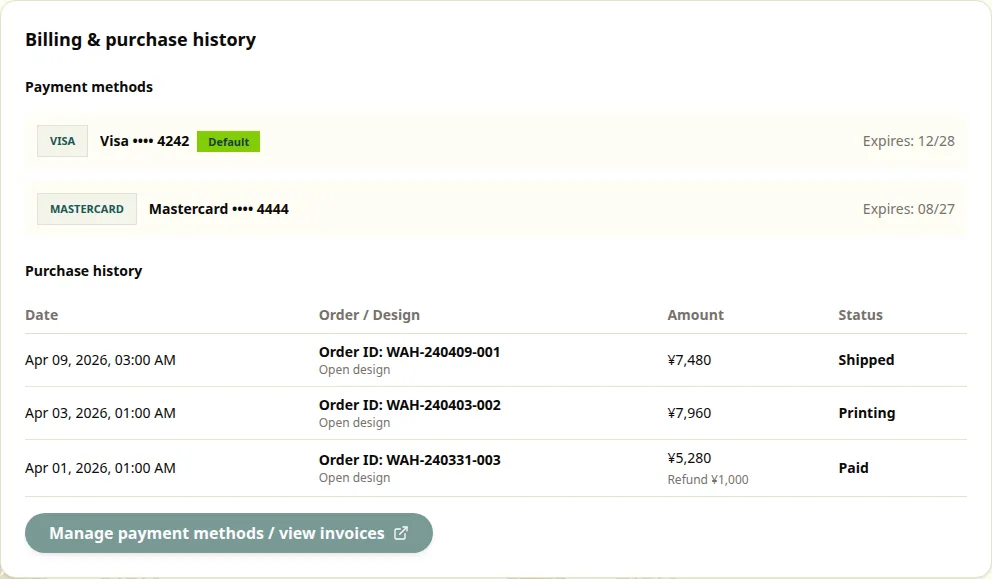
My Page with purchase history and the Stripe portal link
If the issue is with delivery or returns
- Check shipping status in My Page purchase history
- Check the delivery estimate in the FAQ entry for lead time
- Check cancellation or return conditions in the FAQ entry for cancellation and returns
- If the delivered item has a defect, review the FAQ entry for defects and then contact Support
Returns are only handled when the product has a defect. If you are unsure, contact support with the order ID if you have it.
What to include when contacting support
If the issue still is not resolved, contact Support. These details make it much easier to help you quickly:
- which screen you were using
- when it happened and what you had just done
- any message shown on screen
- your order ID or registered email address if you know it
Including which screen and what you did immediately before the problem is often the most useful context.