The basics to know first
- Start your design from the gallery.
- Before creating an account, you can start a design, open a template, and try editing and Final look.
- Sign-in is only required when you save, continue into the order flow, or open My Page.
It is completely fine to explore first and sign in only when you want to keep your design or continue toward checkout.
How to start a design
When you open the gallery, you will see the main "Start designing" button and a list of templates. There are two easy ways to begin.
Start a new design
- Choose "Start designing" if you want to begin from a blank design.
- The editor opens right away with a fresh draft.
- On your first visit, selecting one frame and trying a few actions is enough.
Start from a template
- Open a template if you want a ready-made starting point.
- Templates are flexible, so you can still change the frame and stamps later.
- If starting from scratch feels like too much, templates are usually the easier path.
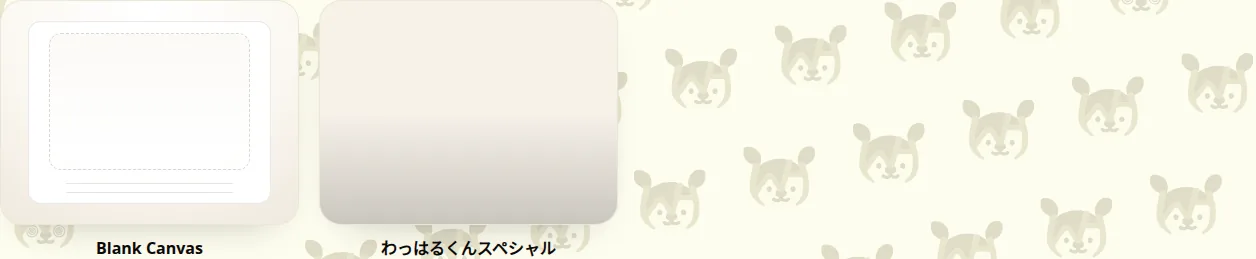
Gallery with the start button above the template list
What to check first in the editor
Once the editor opens, start by looking at these three areas.
- The left library: this is where you choose frames and stamps.
- The top toolbar: this is where you switch between "Edit" and "Final look", place a photo for preview, save, or use the button that continues into the order flow.
- The center canvas: this is where you review the layout and the finished look. If no frame is selected, the canvas will tell you that first.
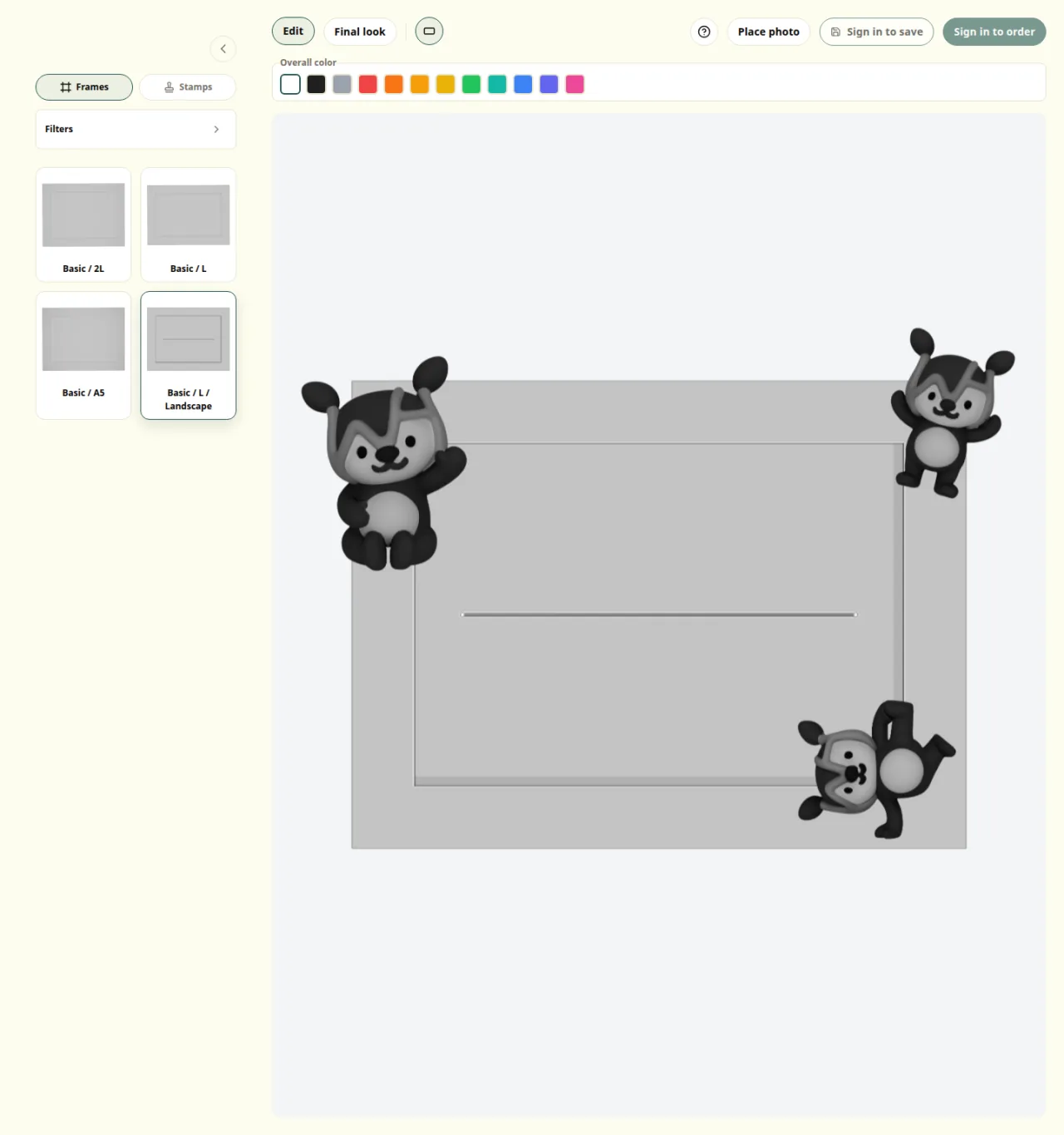
Editor view with the library, top toolbar, and center canvas
When sign-in is required
Sign-in is not required for the first steps, but it does become necessary in these moments.
- When saving You want to keep the design in your account.
- When continuing into the order flow You are ready to move into cart review and purchase.
- When opening My Page You want to review order history or payment information.
After sign-in, you can continue from the screen you were already using.
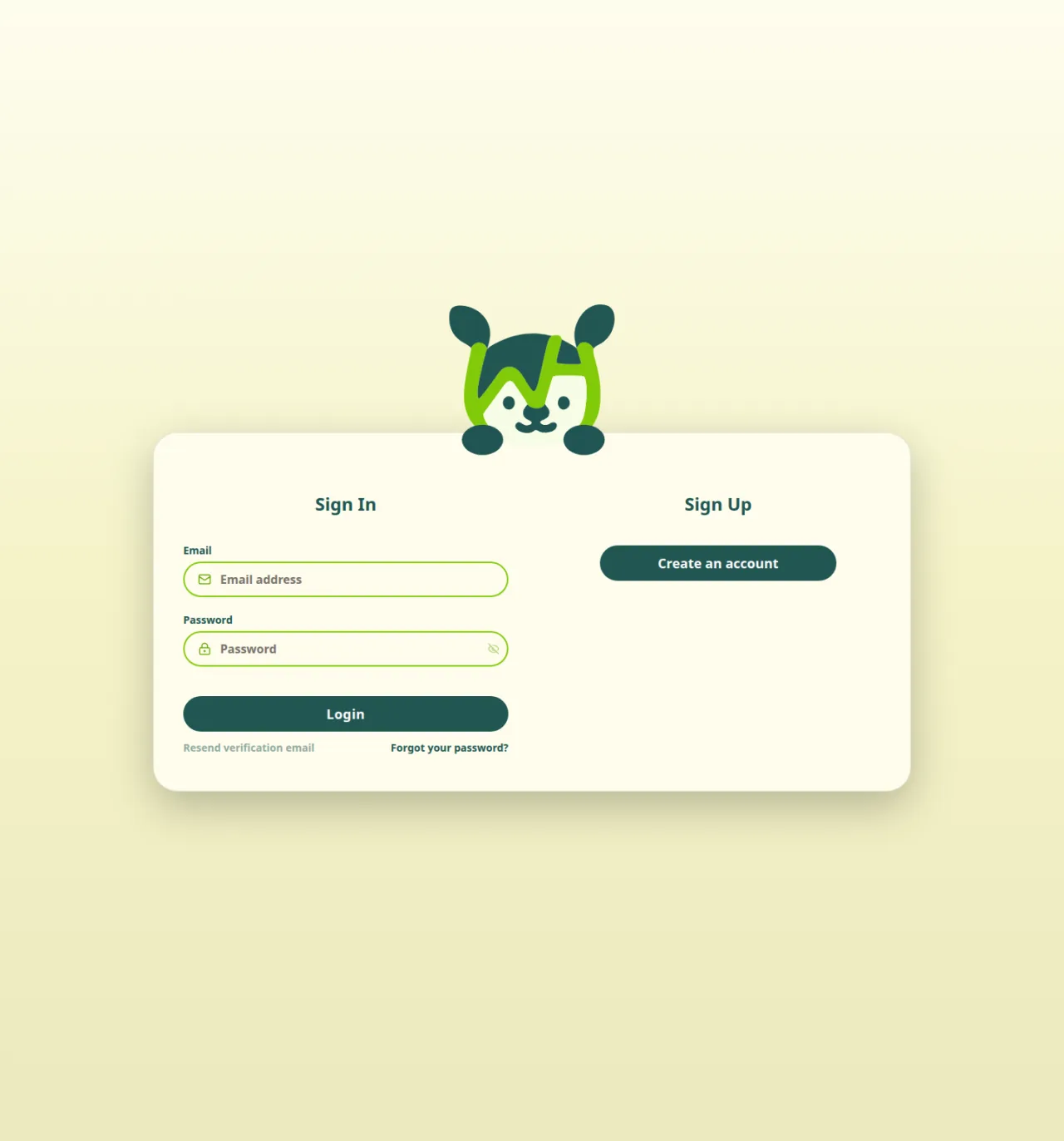
Sign-in screen with sign-in and account creation entry points
A simple first session
You only need a few steps to understand how the service works.
The first useful action is always choose one frame. Once the frame is selected, the rest of the workflow makes much more sense.
- Choose one frame
- Place a stamp in Edit
- Check the overall look in Final look
- Save it if you want to keep it, or use the top-right order button to continue if you are ready
The label on that button changes with the situation, for example "Add to cart", "Order this design", or "Sign in to order". In every case, payment does not complete immediately. The flow always goes through cart review first.
You do not need a perfect result on your first try. The goal is simply to understand which screen is used for which part of the process. The four sections below make that first route easier to follow.
1. Choose one frame
Start with the left Frames list and pick one base frame.
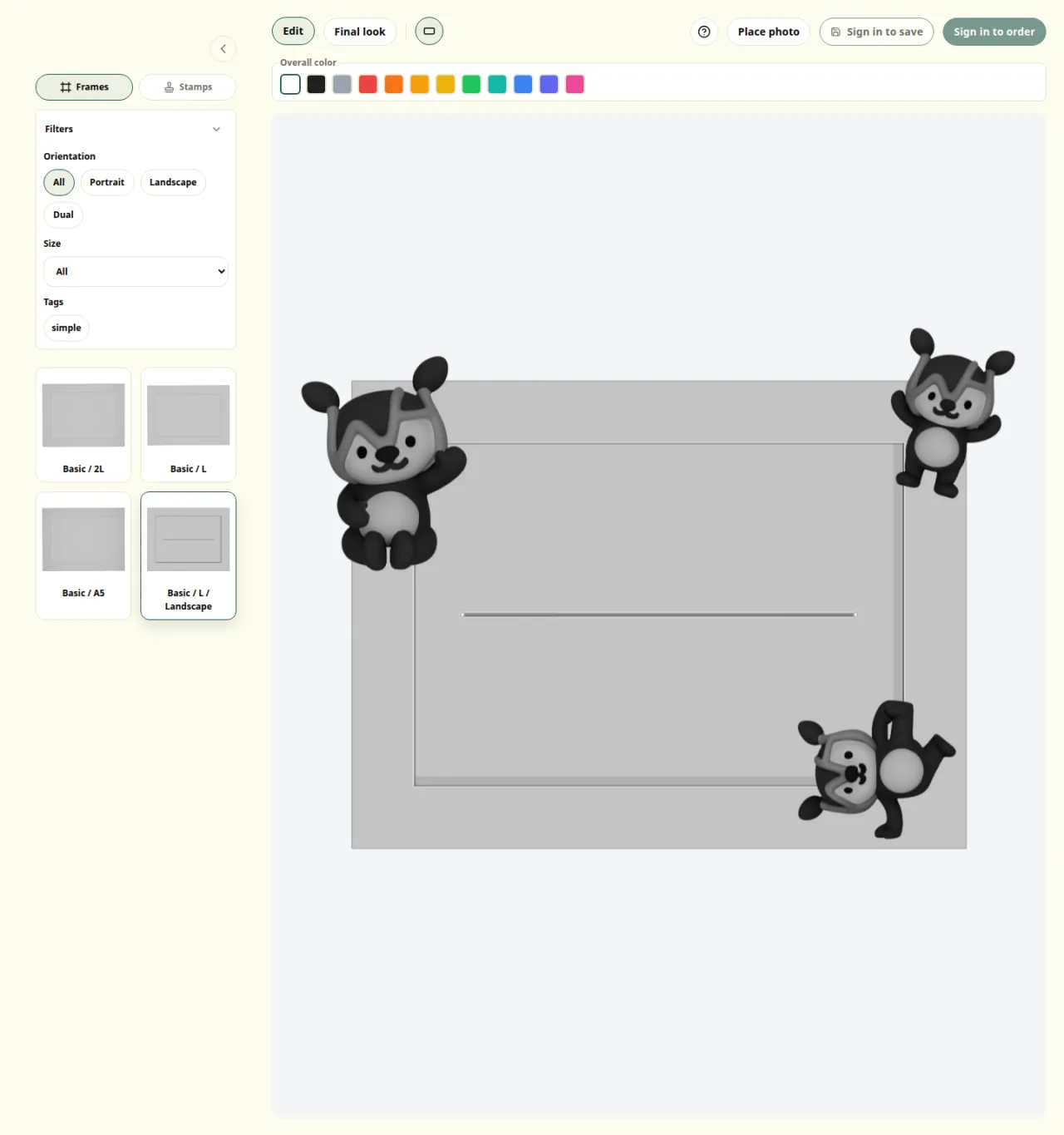
Editor view with the frame list open on the left
2. Place a stamp
After that, switch to Stamps, select a stamp, then click or tap the canvas to place it.
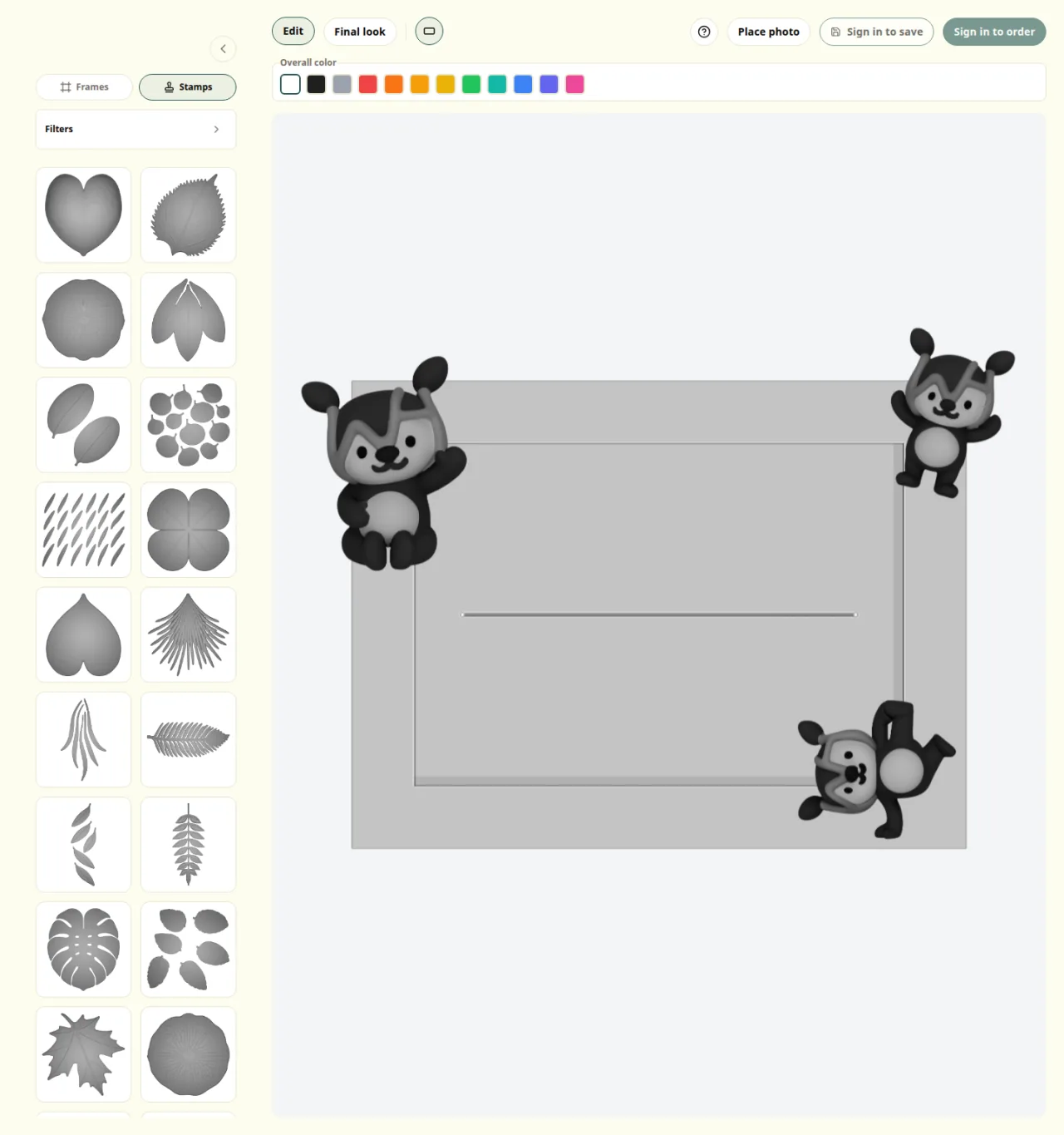
Editor view with the stamp list and canvas visible
3. Check the result in Final look
Once a stamp is placed, switch to Final look and check the overall look.
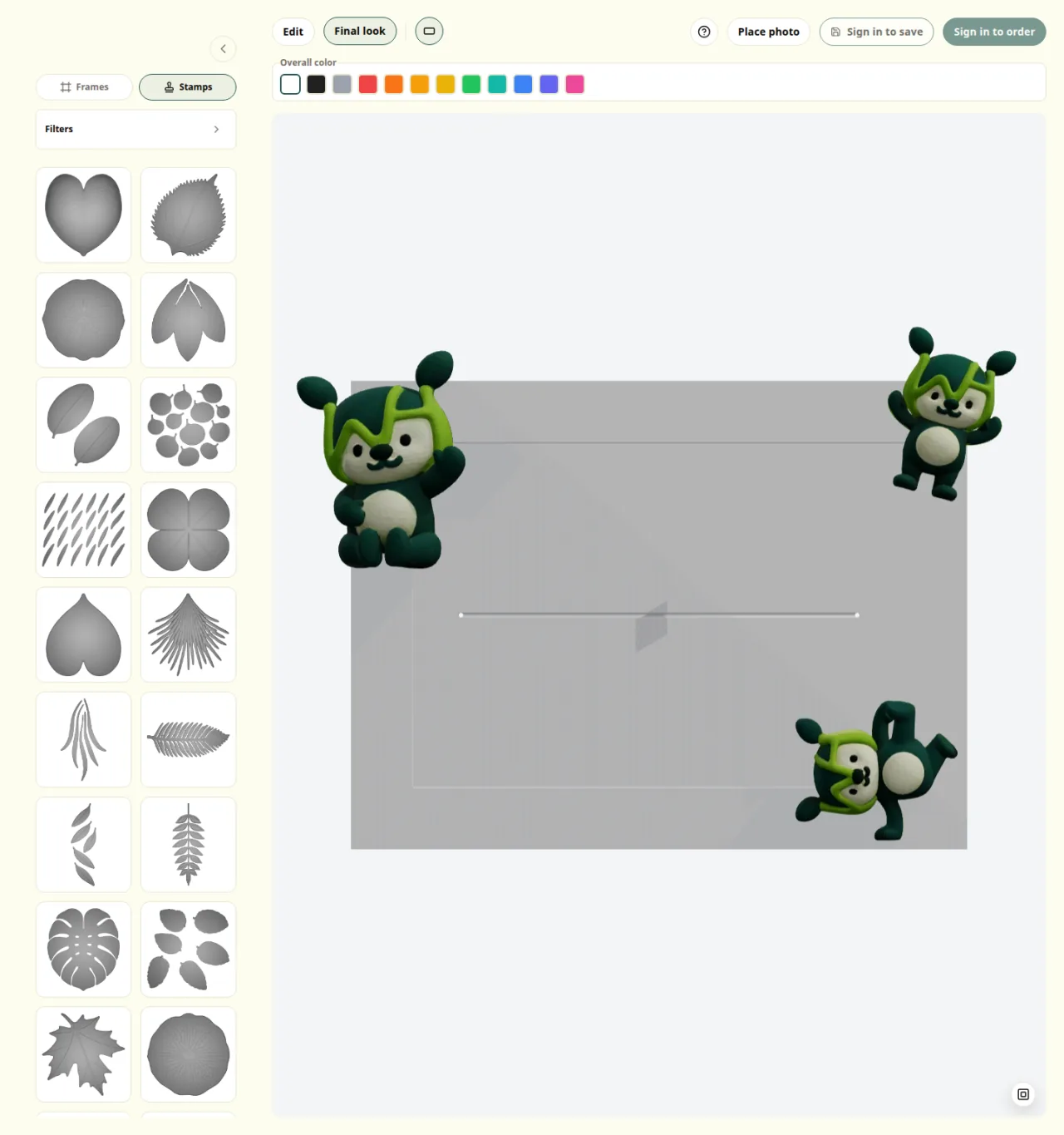
Editor view switched to the Final look tab
4. Save it or continue into the order flow
Save it if you want to come back later, or use the top-right order button to continue if you are ready to buy.
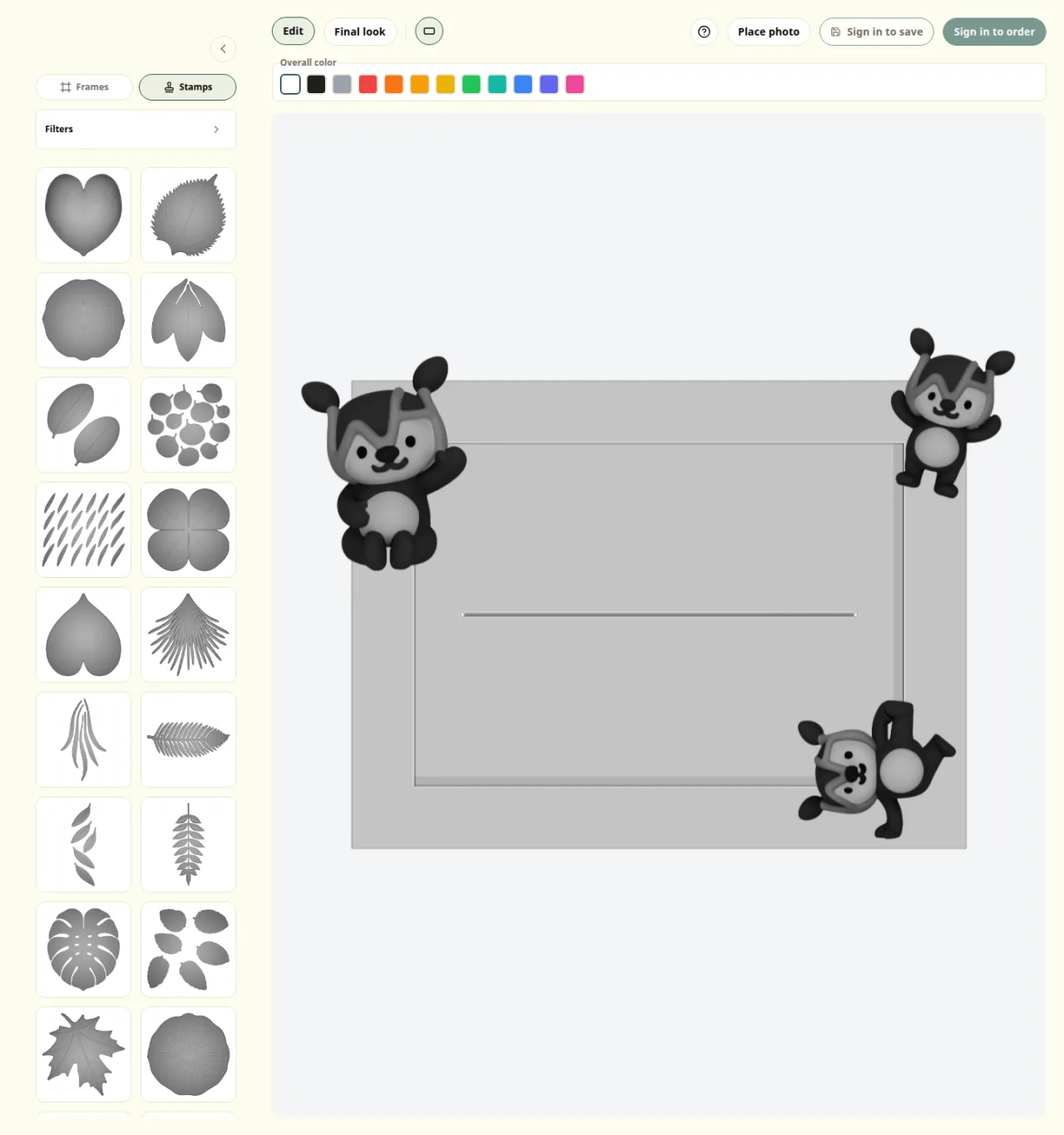
Editor view with Save and order buttons in the top right
Common sticking points
- Trying it before sign-in: You can use editing and Final look first. Sign-in is only required when you save, continue into the order flow, or open My Page.
- When payment starts: Using the order button does not start payment immediately. The flow always goes through a cart review step first.
- Starting from a template: You can still change the frame and stamps after opening a template.