What you can review in My Page
My Page brings account settings and post-order review together in one place. If you are unsure where to look first, this is usually the best place to start.
- What you can do inside PF Review your display name and email preferences, and check purchase history
- What you review inside PF Saved cards and the current order status
- What you do in the Stripe portal Change payment methods and review receipts or detailed billing information
This guide separates what stays inside PF from the steps that continue in Stripe.
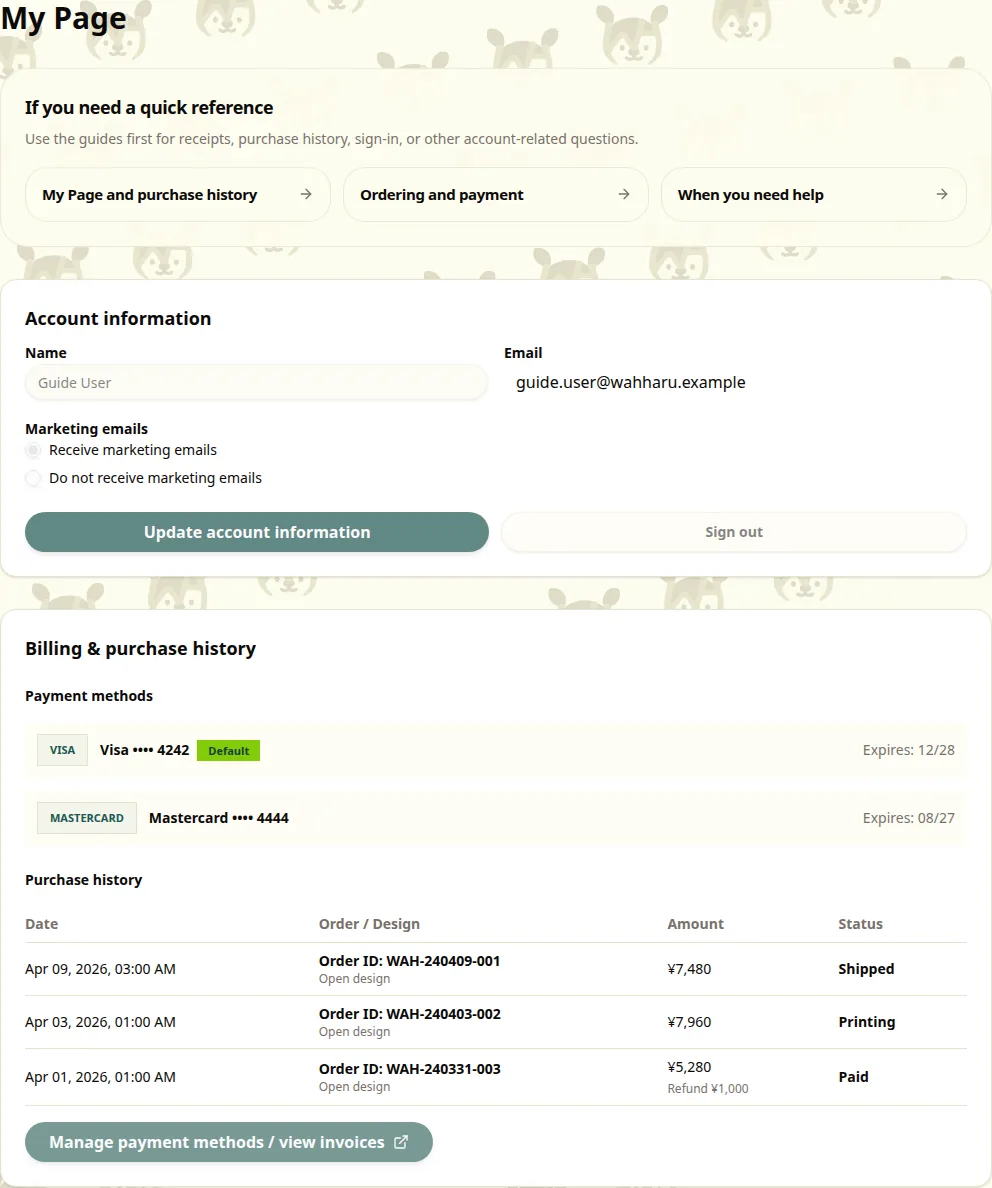
My Page with separate PF action and review areas
How to open My Page
- After signing in, open "MY PAGE" from the header or menu.
- If you are not signed in yet, the app sends you to authentication first.
- After sign-in, you can continue into My Page.
If you expect to see order history but cannot open the page, check the sign-in state first.
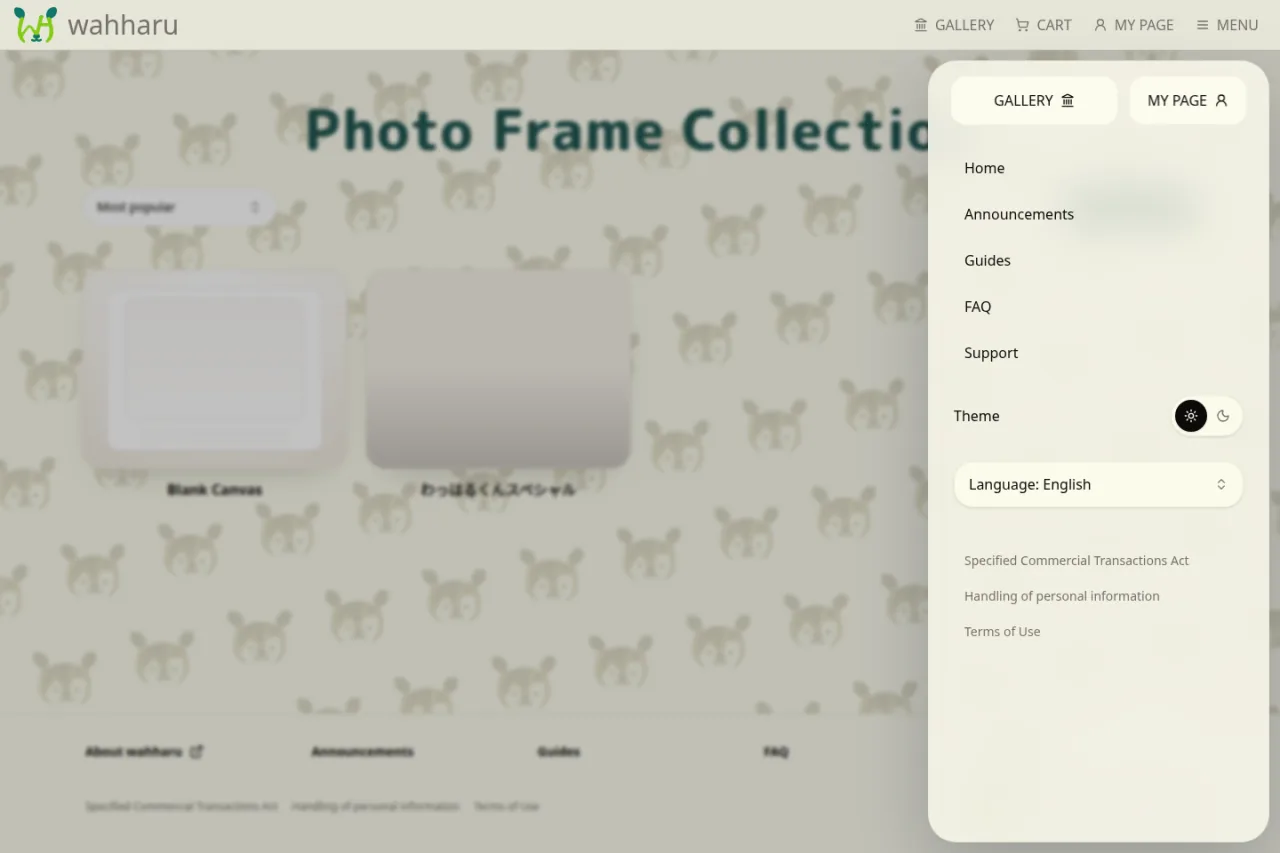
MY PAGE links in both the header and sidebar
What you can manage directly in PF
The Account information section includes both review-only fields and controls you can use right away.
- Change your display name and save it here
- Review the email address on the account
- Update the marketing email preference here
- Sign out from this section
If your question is about your own account rather than an order, start here.
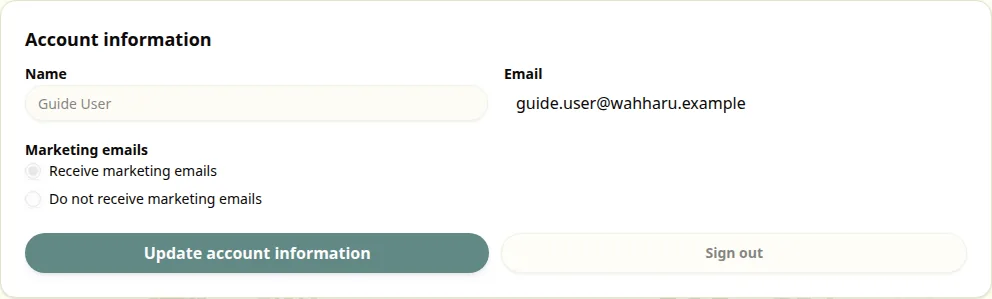
Account information with editable and review-only items
How to check payment methods and purchase history
The Billing & purchase history section is where you review the current state first, then use Manage payment methods / view invoices only when you need a change or more detail.
Payment methods
- Card brand
- Last four digits
- Expiration date
- Whether the card is the default
This list is for review only. If you need to add or change cards, continue from Manage payment methods / view invoices.
Purchase history
- Order date
- Order ID or payment ID
- Amount
- Current status
- A link back to the related design when available
Statuses can include Paid, Pending, Printing, and Shipped. Start by reviewing the order status here, then use the button at the bottom of the section if you need a receipt or more billing detail.
Choosing Manage payment methods / view invoices opens the Stripe portal, where you can update payment methods and review receipts.
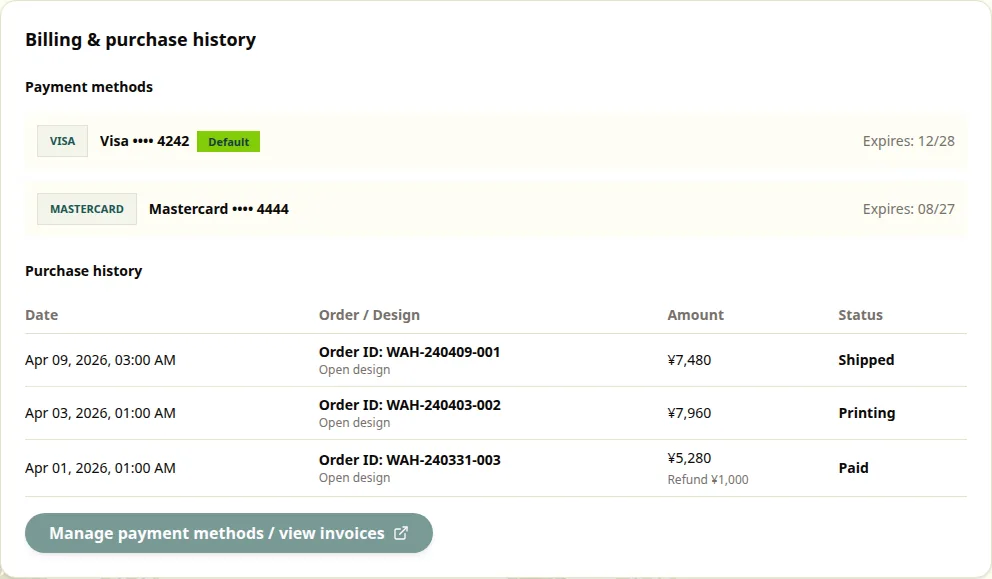
Billing area with saved cards, purchase history, and the Stripe portal link
What to recheck if history is missing
If an order is not showing where you expect it, check these points in order.
- Confirm that payment actually completed
- Confirm that you are signed in with the same account used for the order
- Review the detailed record in the Stripe portal
The most common cause is simply being signed in with a different email address.
Common sticking points
- Where to find receipts: Use Manage payment methods / view invoices in My Page to open the Stripe portal.
- Where to update payment methods: The list in My Page is review only. Changes happen after you continue from Manage payment methods / view invoices.
- Why an order is missing: First confirm that payment finished and that the signed-in account matches the one used for the order.