The flow to know before ordering
The ordering flow is easier to follow when you move through it in this order:
- Review the design in the editor and use the order action in the top right
- Check quantity and totals in the cart
- Pay on Stripe's hosted payment screen
- Review the result on the payment-complete screen, in the confirmation email, and in My Page
The label on that action changes with the situation, for example "Add to cart", "Order this design", or "Sign in to order". In every case, payment does not complete immediately. There is always a cart review step first.
1. Review the editor before ordering
Before you continue, make sure these three points look right.
- A frame has been selected
- The placement looks correct in Edit
- The finished look has been checked in Final look
Once those points look right, use the order action in the top right to move into the cart review flow.
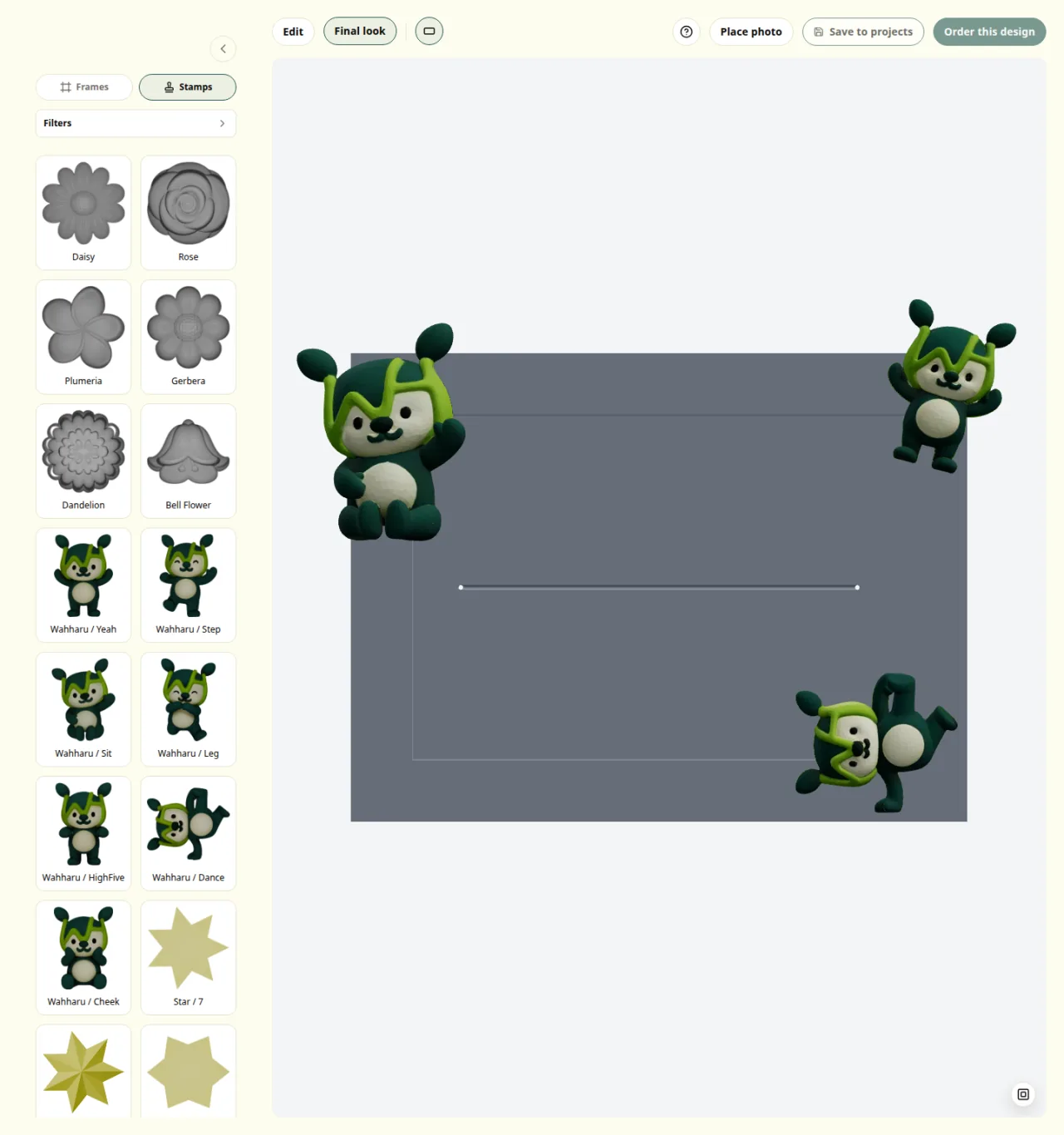
Top bar with Edit, Final look, and the order action
2. Do the final review in the cart
The cart is where you do the final review before payment.
Focus on these four areas.
- Item list: check the thumbnail, design name, and quantity.
- Quantity controls: increase or decrease the number of items if needed.
- Attention messages: if something needs review, the cart shows it here before payment.
- Order summary: check shipping, total amount, and the payment button.
If you want to change the design or quantity, this is the safest point to do it. If the cart is empty, go back to the gallery and add a design first.
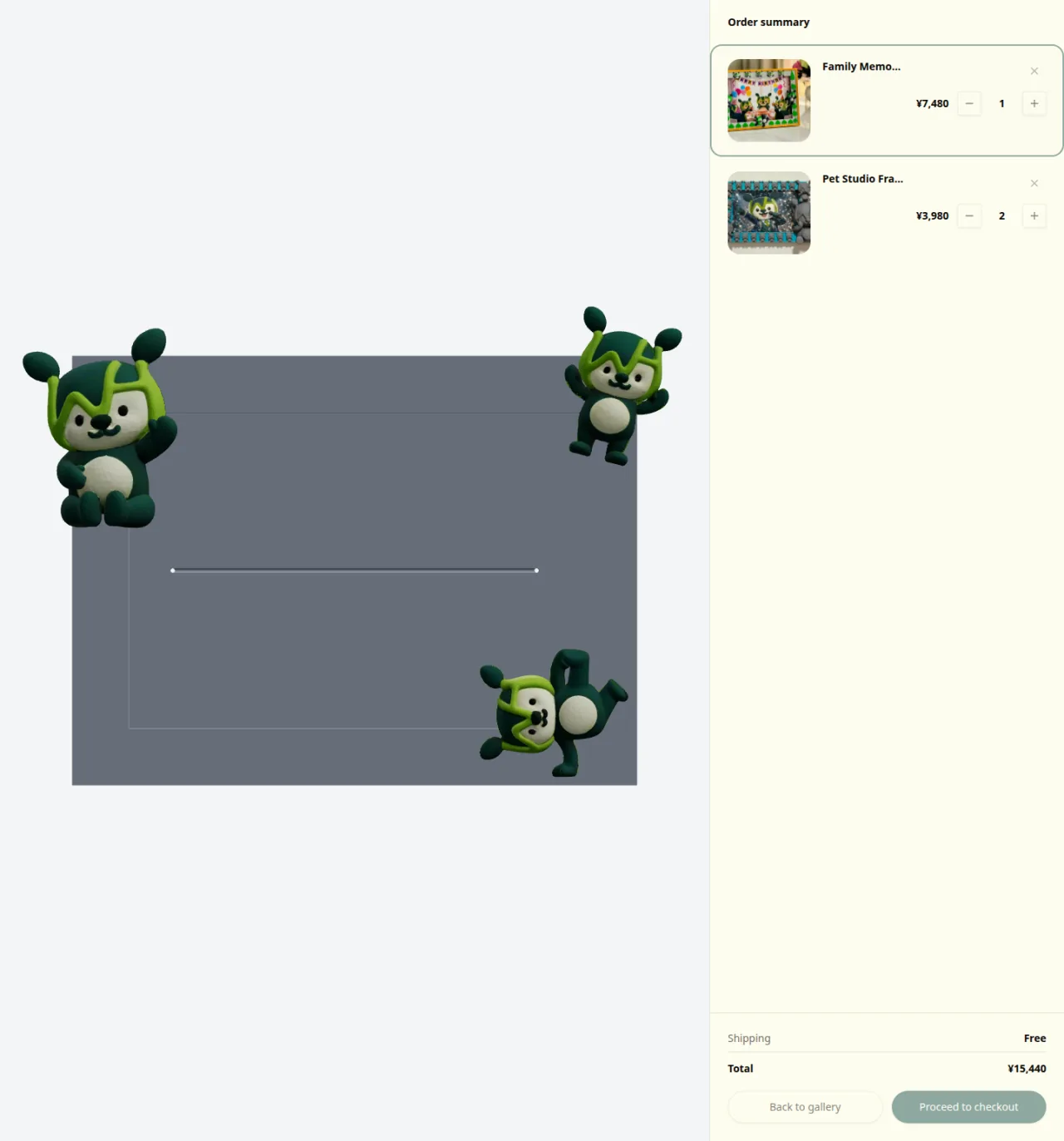
Cart view with items and quantities beside the order summary
3. Continue to payment
If the cart looks correct, use "Continue to payment" at the bottom to move forward.
- The current payment method is credit card.
- From this point, PF sends you to a Stripe-hosted payment page.
- If you need to change the contents, review the cart or editor before you continue.
When payment completes, the payment-complete screen appears and a confirmation email is sent. If you need to change the order while payment is already in progress, return to the cart instead of continuing.
4. Review the result in My Page after payment
After payment, My Page becomes the main place to confirm what happened.
- Use Purchase history to review recent orders
- Use Payment methods to review saved cards
- Use Manage payment methods / view invoices to review receipts and detailed billing information
Purchase history can show statuses such as Paid, Pending, Printing, and Shipped. If you are unsure whether the order is complete, check the payment-complete screen and confirmation email first, then review the entry in My Page.
Choosing Manage payment methods / view invoices opens the Stripe portal, where you can review receipts and detailed billing information.
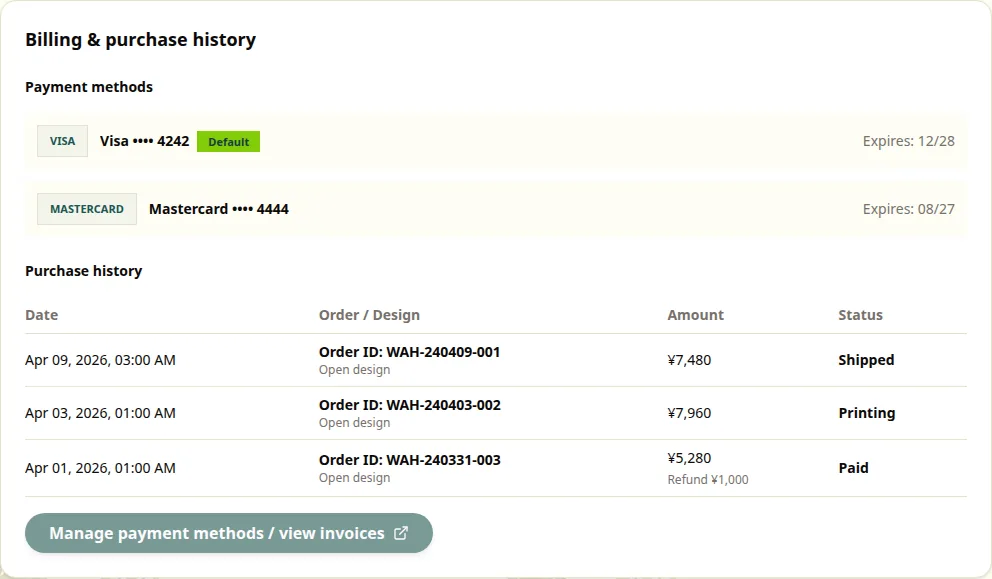
My Page with purchase history and the Stripe portal link
Common sticking points
- What happens after the order action: Payment does not finish straight from the editor. The flow always goes through cart review first.
- When you want to change the design or quantity: Do it before continuing to payment, while you are still in the editor or cart.
- Where to find receipts: Use Manage payment methods / view invoices in My Page to open the Stripe portal.